
Stock Traders Pit & STP Elite Trading Indicator FAQ
Get answers about the Stock Traders Pit and the STP Elite TradingView Indicator. Learn how A+ signals, structured risk management, and live trader support help active traders succeed.
Stock Traders Pit FAQs
TradingView Indicator FAQs
The STP Elite Trading System Indicator is a professional-grade TradingView indicator developed for members of Stock Traders Pit. It is designed to help traders identify high-probability setups through structured technical analysis, AI-enhanced modeling, and disciplined risk management.
Rather than relying on a single indicator or simple crossover strategy, STP Elite integrates multiple layers of analysis, including:
A+ CALL and PUT signal logic based on confluence
Trend and momentum alignment filters
Dynamic support and resistance levels
Structured Take Profit (TP) targets
Exit signal guidance
Optimization modes for scalp, intraday, swing, and position trading
The purpose of the STP Elite indicator is not to generate random alerts, but to help traders make structured, rule-based decisions with defined entry and exit frameworks.
It does not guarantee profits and does not eliminate risk. Instead, it is designed to improve consistency, discipline, and trade management for serious traders.
The STP Elite Trading System Indicator is available exclusively to members of Stock Traders Pit and who have an active TradingView.com account.
To gain access:
Join the Stock Traders Pit community or subscribe to the TradingView Pro-Trader AI Indicator on the Services page.
Provide your TradingView username during registration.
You will be granted access to the invite-only STP Elite indicator directly inside your TradingView account.
Add the indicator to your chart from your “Invite-Only Scripts” section.
Because STP Elite is a private, invite-only TradingView indicator, it is not publicly listed in the TradingView indicator library. Access is included with membership and includes updates when new versions are released. If you have any questions during setup, support is available to help ensure the indicator is properly installed and configured.
Step 1: Confirm AccessAfter joining Stock Traders Pit and providing your TradingView username, you will receive access to the STP Elite indicator directly inside your TradingView account.Step 2: Open TradingViewLog in to your TradingView account and open any chart.Step 3: Add the Indicator
- Click Indicators at the top of your chart.
- Select the Invite-Only Scripts tab.
- Find STP Elite Trading System Indicator in the list.
- Click it to add it to your chart.
Step 4: Configure SettingsOnce added to your chart:
- Click the Settings (gear icon) next to the indicator name.
- Choose your Optimization Mode (Scalp, Intraday, Swing, Position).
- Enable or disable labels such as A+, Take Profit, or Exit signals.
- Adjust visuals as needed.
Step 5: Save Your Chart LayoutAfter setup, click Save Layout in TradingView so your settings remain stored.
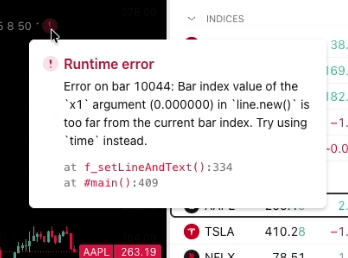
The most common issue is that the chart isn't on ETH (extended trading hours), so there are too many candles, and the session logic is trying to analyze too many data points and doesn’t initialize. Change the chart session from RTH to ETH. If that doesn't work contact Stock Trader Pit for additional troubleshooting.
- Individual stocks
- ETFs (SPY, QQQ, etc.)
- Options (based on the underlying stock chart)
- Intraday and swing setups
- Shares for longer-term moves
- Swing trades over several days
- Short-term options
- Intraday momentum
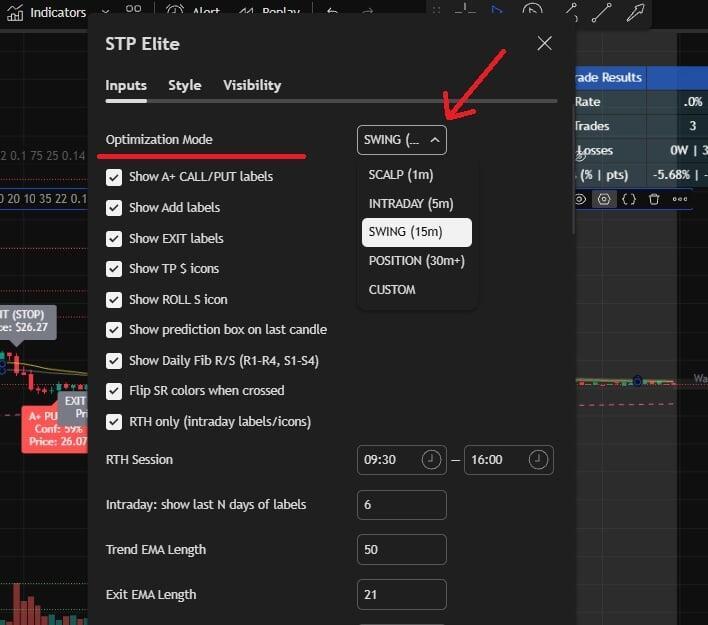
For example:
- 0DTE traders often prefer Scalp or Intraday mode
- Active day traders typically use 5-minute charts
- Swing traders may use 15-minute or 30-minute charts
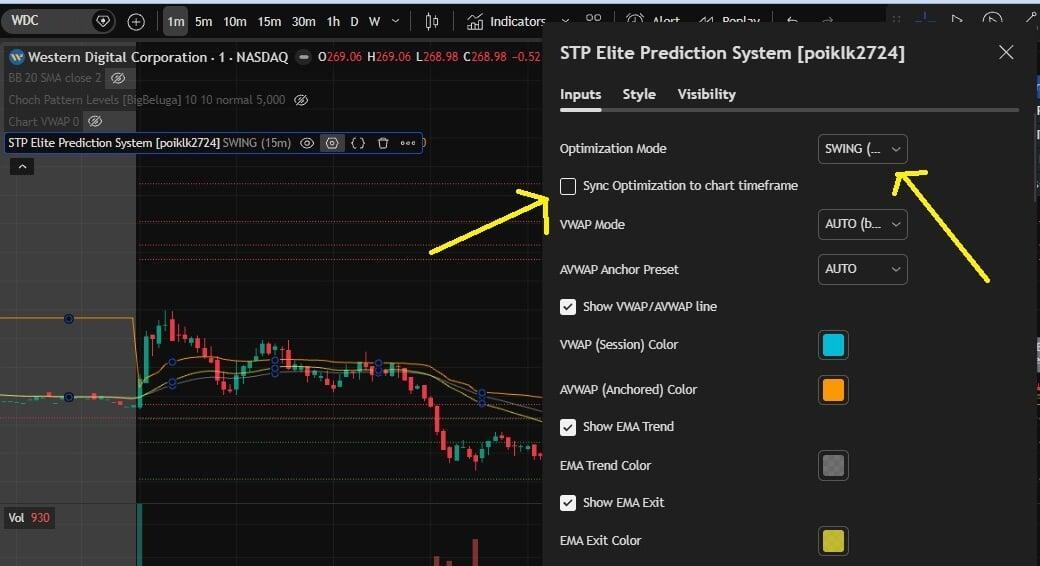
When “Sync Optimization Settings” is enabled, your script is essentially forcing the optimization behavior to stay aligned with the chart timeframe logic you built. So changing the dropdown won’t visibly change much because it’s being overridden.
By unchecking Sync Optimization Settings, you’re now:
Free to run a 1-min chart with SWING optimization
Free to run a 15-min chart with INTRADAY optimization
Free to intentionally reduce or increase label density.
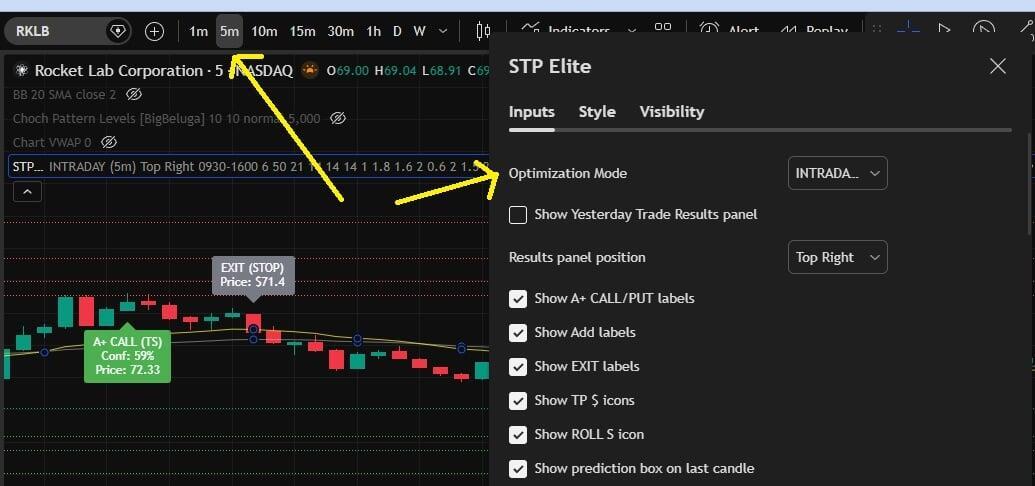
- Chart timeframe
- STP Elite Optimization Mode
- Your trade duration
- Your risk tolerance
- Market volatility
- ML sensitivity
- ATR projection size
- Label timing
- ORB gate filtering
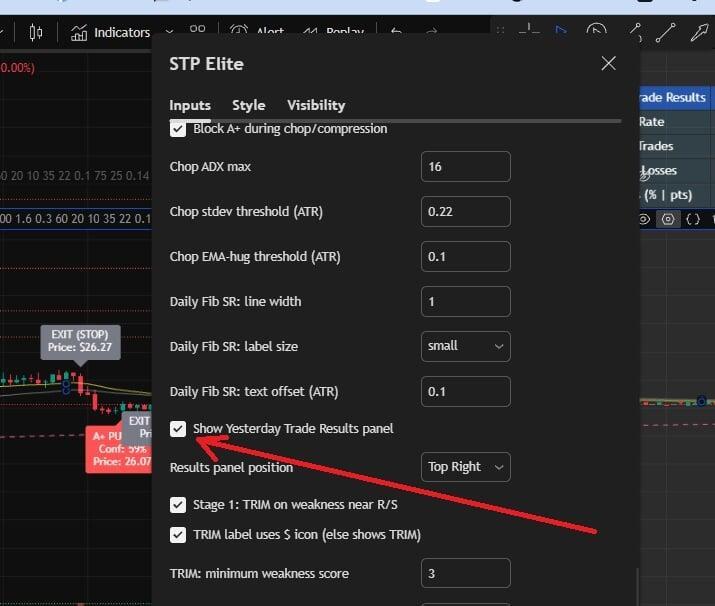
Yes, you can disable or hide the Yesterday Trading Results table on the indicator settings menu. To Hide the table:
- Click the gear icon on the STP Elite indicator.
- Go to the Inputs tab.
- Find the checkbox labeled:
- “Show Yesterday Trade Results panel”
- Uncheck that box.
- Click OK.
You can easily create Buy (A+ CALL) or Sell (A+ PUT) alerts in TradingView using the STP Elite Trading System Indicator. These alerts can be sent directly to your email and mobile app.
Step 1: Add the Indicator to Your Chart
Make sure the STP Elite Trading System Indicator is active on your TradingView chart. Alerts can only be created from a chart where the indicator is loaded.
Step 2: Open the Alert Window
- Click the Alarm Clock icon at the top of TradingView
- Right-click anywhere on the chart and select Add Alert
OR
In the Alert window:
Click the Condition dropdown.
Choose STP Elite Trading System Indicator.
Select the specific signal you want alerts for:
A+ CALL, A+ PUT, Take Profit, Exit
Step 4: Choose Alert Frequency
For most traders, selecting Once Per Bar Close is recommended to reduce false triggers.
Step 5: Enable Email Notifications
Under “Alert Actions”:
- Check Send Email
- Optionally check Notify on App
- Webhook notifications are available for advanced users
- Make sure your TradingView email address is verified in your account settings.
Step 6: Click Create
Once created, you will receive email notifications whenever the selected Buy or Sell condition is triggered.
Important Notes
- Alerts are specific to the chart and timeframe you are viewing.
- If you change timeframes, you must create new alerts.
- TradingView Free plans have alert limits.
- For full trade management coverage, consider creating separate alerts for A+ CALL, A+ PUT, Take Profit, and Exit signals.